Model
Qwen + FLUX
Type
Image Edit
Difficulty
Advanced
Resolution
1024x1024
Settings
sampler
euler_cfg_pp steps
28 cfg
6.5 resolution
1024x1024 seed
256 model
flux1-dev.safetensors Prompts
a cozy cabin in the woods with smoke from the chimney, snow falling, warm light from windows, winter atmosphere
text, watermark, blurry, oversaturated, deformed, noisy, low resolution
Sample Outputs
Real outputs generated with this workflow — click to enlarge.

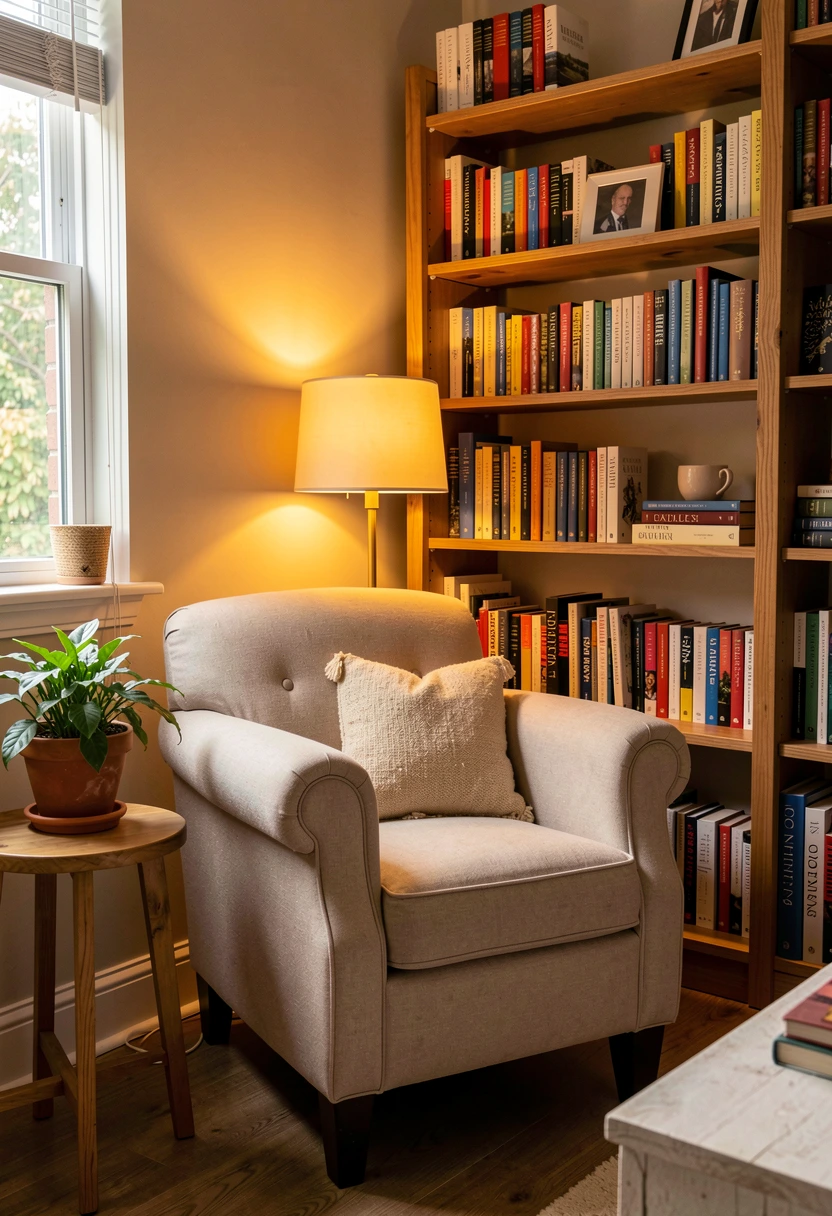
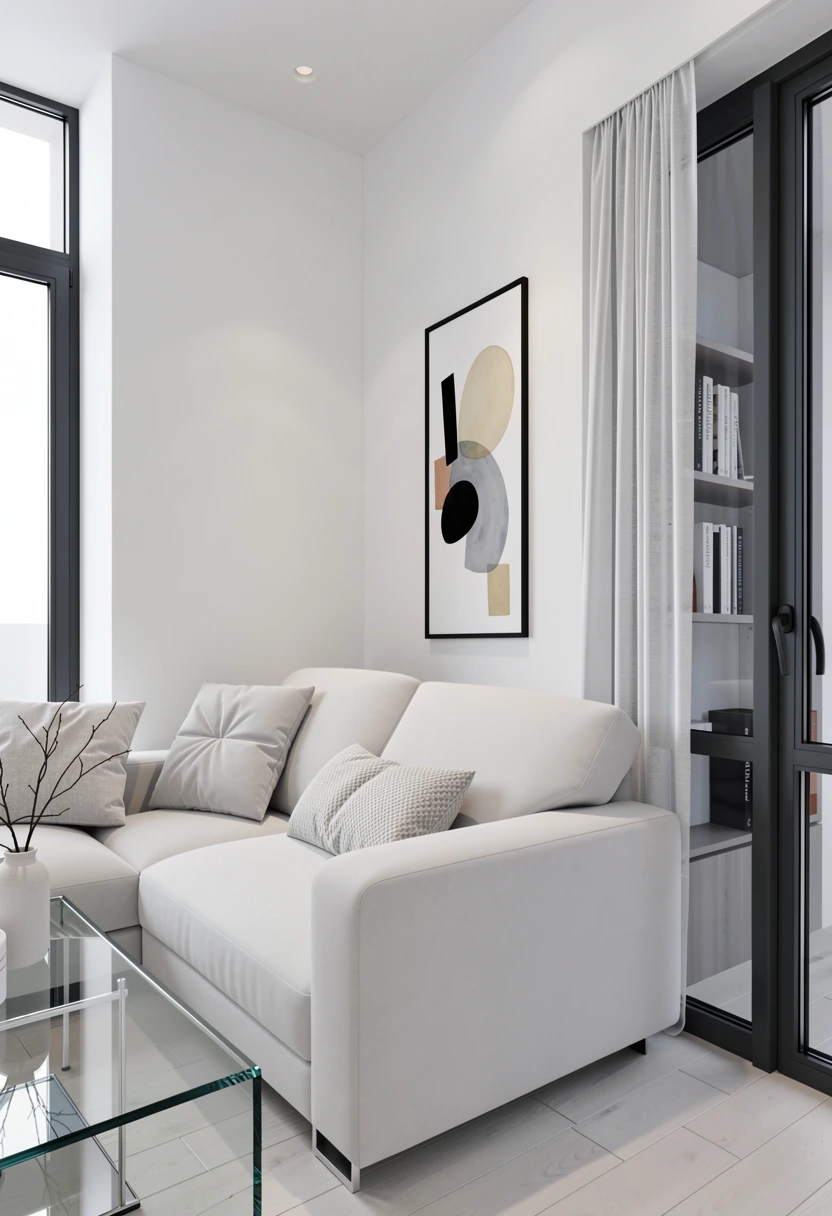


Before & After
Before and after using Qwen language understanding for natural language image editing. The instruction-driven edit transformed a potted plant composition into a winter cabin scene while maintaining structural coherence.
Original
Edited
What's Included
- Leverages Qwen language model for understanding
- Natural language image editing instructions
- Same settings as Klein for consistent quality
- Advanced prompt comprehension
How to Use
- 1 Download the JSON file using the button above
- 2 Open ComfyUI in your browser
- 3 Drag the JSON file into the ComfyUI canvas, or click "Load" and select the file
- 4 Queue Prompt and watch the generation happen
Ready to Use This Workflow?
Download the JSON and import it into ComfyUI. All settings are pre-configured for consistent results.
Download qwen-image-edit.json